> ## Documentation Index
> Fetch the complete documentation index at: https://docs.foggyhq.com/llms.txt
> Use this file to discover all available pages before exploring further.
# Automations
> Scheduled and alert-triggered AI investigations that run without manual effort.
Automations run investigations automatically — either on a schedule or when alerts fire — and deliver results to the web interface and Slack.
## How it works
An automation runs on its schedule (e.g. 09:00 every morning) or when an alert matches its filter rules.
Foggy runs the investigation using your connected data sources — querying metrics, logs, dashboards, and cluster state, just like a manual investigation.
Results appear as a chat thread in the web interface and are delivered to Slack (if configured). Full chain-of-thought, sources, and follow-up suggestions included.
## Alert-triggered automations
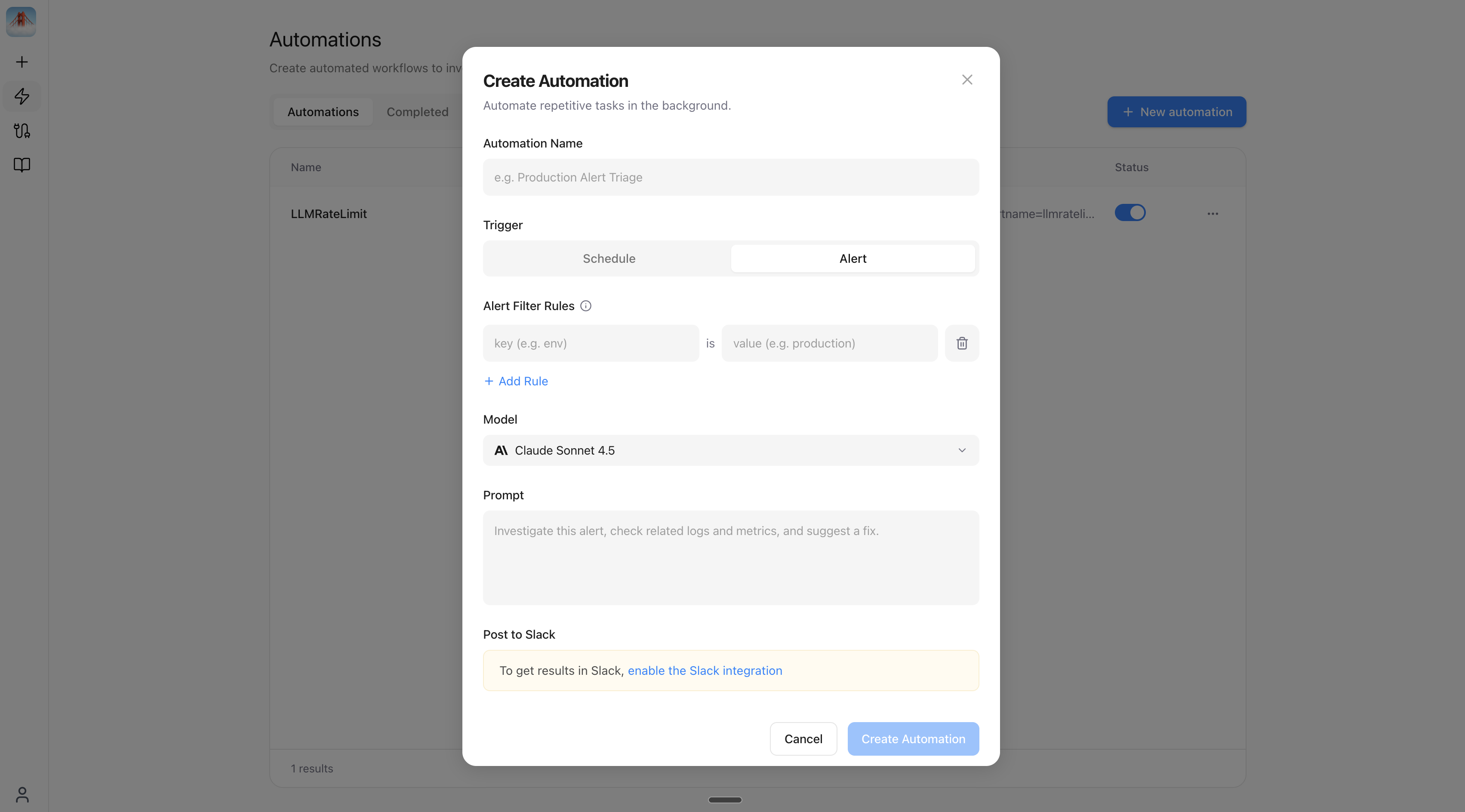
Configure automations that fire when alerts come in. Define filter rules to control which alerts trigger investigations.
### Filter rules
Filter rules match against alert labels. Multiple rules use AND logic — all must match for the automation to trigger.
**Common patterns:**
| Pattern | Filter rules | Use case |
| -------------- | -------------------------------------------- | -------------------------------------- |
| Critical only | `severity = critical` | Investigate only high-impact alerts |
| Service-scoped | `severity = critical` + `service = checkout` | Focus on a specific service |
| Namespace | `namespace = production` | Ignore staging/dev alerts |
| Broad triage | `alertname = HighErrorRate` | Auto-investigate a specific alert type |
Start narrow (e.g. `severity = critical` for one service) and expand as you build confidence.
 ## Run now
Every automation — scheduled or alert-triggered — has a **Run now** button on its detail page. This executes the automation immediately against live data, independent of its schedule or filter rules. Useful for testing a new automation, or to re-run one after fixing a connector.
## Scheduled automations
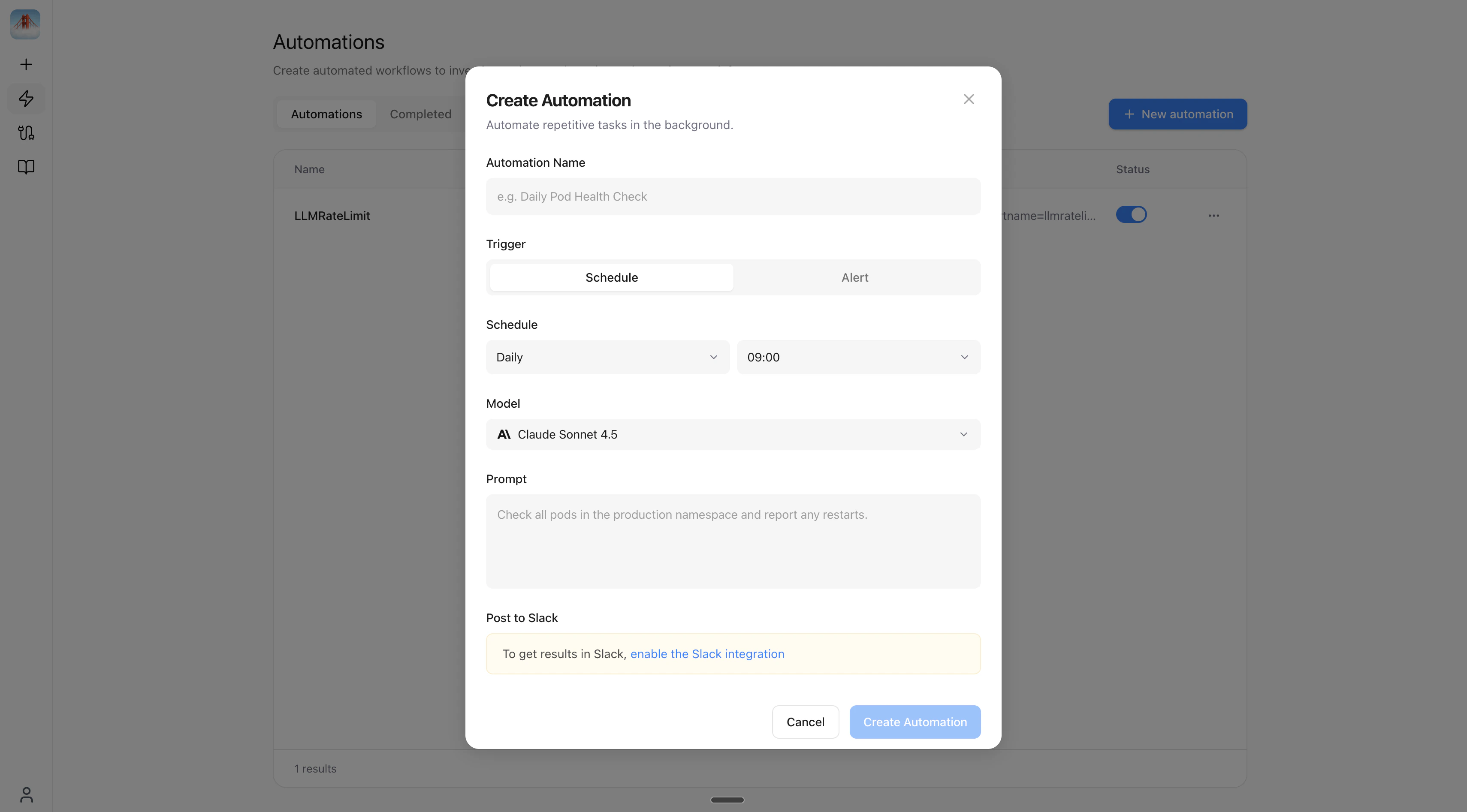
Set up investigations that run on a recurring schedule — no alerts required.
| Frequency | Configuration |
| ------------ | --------------------------------------------------- |
| **Daily** | Runs every day at selected times |
| **Weekly** | Select specific days (e.g. Mon, Wed, Fri) and times |
| **Monthly** | Select specific days of the month (1–31) and times |
| **One-time** | Pick a specific date and time for a single run |
All frequencies support **multi-select times** — e.g. run at both 09:00 and 17:00.
## Run now
Every automation — scheduled or alert-triggered — has a **Run now** button on its detail page. This executes the automation immediately against live data, independent of its schedule or filter rules. Useful for testing a new automation, or to re-run one after fixing a connector.
## Scheduled automations
Set up investigations that run on a recurring schedule — no alerts required.
| Frequency | Configuration |
| ------------ | --------------------------------------------------- |
| **Daily** | Runs every day at selected times |
| **Weekly** | Select specific days (e.g. Mon, Wed, Fri) and times |
| **Monthly** | Select specific days of the month (1–31) and times |
| **One-time** | Pick a specific date and time for a single run |
All frequencies support **multi-select times** — e.g. run at both 09:00 and 17:00.
 ## Next steps
Investigate incidents and get automation results directly in Slack.
Add runbooks and context so Foggy gives more accurate answers.
Add Grafana, Kubernetes, and more to power investigations.
## Next steps
Investigate incidents and get automation results directly in Slack.
Add runbooks and context so Foggy gives more accurate answers.
Add Grafana, Kubernetes, and more to power investigations.